From RSS to my Kindle Building website EPUBs with Python
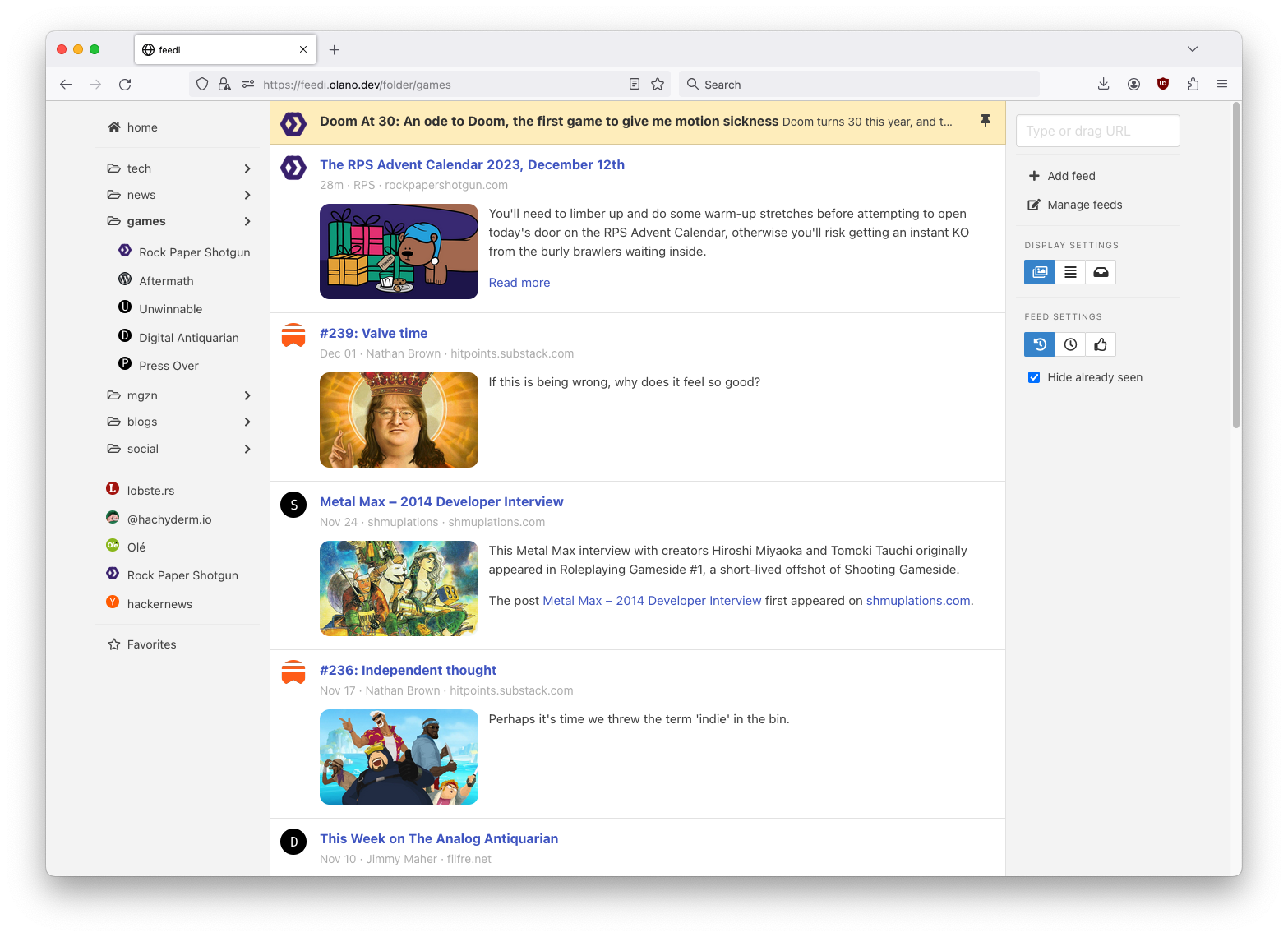
Last year I wrote about how I built feedi, a personal feed reader, and started using it as my front page to the web. In the months since I published that post, I continued to tweak the app, observing my reading habits, experimenting with new features, and discarding the ones I didn’t need. I now got it to a place where I can count on seeing fresh and interesting content a couple of times a day, and the interface conveniently lets me keep what I plan to read and discard the rest.
But while I’m an avid reader on paper, I struggle with lack of concentration and eye strain when trying to read on a laptop or a desktop monitor —and it only gets worse on the phone. In practice, I use feedi as a mix of news feed, content finder, and organizer; I prefer to send longer blog posts or essays to my Kindle, so I can get back to them when I’m offline: in bed, in the bathroom, at a cafe or on the bus.
So a Kindle integration was a natural extension to feedi. Not only because it streamlined my reading workflow but because Amazon’s Chrome extension and iOS app do a poor job of extracting content from most websites. I was already getting better results with the readability library in feedi’s embedded article view, so I just needed to figure out how to send that cleaned-up HTML over to my Kindle. I learned a couple of things to get that working, so it seemed interesting to document the implementation process here.
My first instinct was to try to get away with a Kindle integration that didn’t require sending emails from my app. I found a Python library that “impersonated” an Amazon client and wrote my first implementation around it, but it turned out to be brittle: it required storing device credentials in the database and manually authenticating every few days, which hurt the user experience, ultimately discouraging me from using the feature at all.
So a few months later I took another stab at it, opting to send articles via email. At a high level, I needed to: fetch the HTML from the website, extract the cleaned-up article content from it, package it into an EPUB file, and attach it to an email to my Kindle device. This is what it looked like from the Flask route:
# feedi/routes.py import flask from flask import current_app as app from flask_login import current_user, login_required @app.post ( "/entries/kindle" ) @login_required def send_to_kindle (): url = flask . request . args[ 'url' ] article = scraping . extract(url) attach_data = scraping . package_epub(url, article) email . send(current_user . kindle_email, attach_data, filename = article[ 'title' ]) return '' , 204
Let’s go through each of these steps. For the extraction, I tried every Python library I could find , but none seemed to do as good of a job as Firefox’s reader view, so I decided to use the JavaScript library that powers it through a little Node.js script :
#!/usr/bin/env node // feedi/extract_article.js const { JSDOM } = require( "jsdom" ); const { Readability } = require( '@mozilla/readability' ); const url = process.argv[ 2 ]; JSDOM.fromURL(url).then( function (dom) { let reader = new Readability(dom. window . document ); let article = reader.parse(); process.stdout.write(JSON.stringify(article), process.exit); });
The script’s output looks like this:
{ "title" : "From RSS to my Kindle" , "byline" : "Facundo Olano" , "content" : "<div id=\"readability-page-1\" class=\"page\"><div lang=\"en\"><header><h3>Building website EPUBs with Python</h3></header><p>Last year I wrote about <a href=\"https://olano.dev/blog/reclaiming-the-web-with-a-personal-reader\">how I built feedi</a>, a personal feed reader, and started using it as my front page to the web. (...)" , "textContent" : "Building website EPUBs with Python
Last year I wrote about how I built feedi, a personal feed reader, and started using it as my front page to the web. (...)" , "length" : 2793 , "excerpt" : "A Kindle integration was a natural extension to my feed reader. I had to learn some subtleties to get it working, so it seemed interesting to document the implementation process." , "siteName" : "olano.dev" }
And this is how I call it from Python:
# feedi/scraping.py import json import subprocess def extract (url): r = subprocess . run([ "feedi/extract_article.js" , url], capture_output = True , text = True , check = True ) article = json . loads(r . stdout) return article
I found that some websites rely on JavaScript to load images lazily, so I rewrote the tags to force them to render (both in the app and in Kindle):
import json import subprocess +from bs4 import BeautifulSoup def extract_article(url): r = subprocess.run(["feedi/extract_article.js", url], capture_output=True, text=True, check=True) article = json.loads(r.stdout) + # load lazy images by setting data-src into src + soup = BeautifulSoup(article['content'], 'lxml') + LAZY_DATA_ATTRS = ['data-src', 'data-lazy-src', 'data-srcset', + 'data-td-src-property'] + for data_attr in LAZY_DATA_ATTRS: + for img in soup.findAll('img', attrs={data_attr: True}): + img.attrs = {'src': img[data_attr]} + + article['content'] = str(soup) return article
Next, I needed to put together a valid EPUB file from this HTML content. A very superficial research revealed that EPUB files are just zips with a few metadata files. So I zipping the article into a bytes sequence:
# feedi/scraping.py import io import zipfile def package_epub (url, article): output_buffer = io . BytesIO() with zipfile . ZipFile(output_buffer, 'w' , compression = zipfile . ZIP_DEFLATED) as zip : zip . writestr( 'article.html' , article[ 'content' ]) return output_buffer . getvalue()
Based on this sample repository I added mimetype, container, and content files pointing to the single article.html file, to turn it into an EPUB:
zip . writestr( 'mimetype' , "application/epub+zip" ) zip . writestr( 'META-INF/container.xml' , """<?xml version="1.0"?> <container version="1.0" xmlns="urn:oasis:names:tc:opendocument:xmlns:container"> <rootfiles> <rootfile full-path="content.opf" media-type="application/oebps-package+xml"/> </rootfiles> </container>""" ) author = article[ 'byline' ] or article[ 'siteName' ] if not author: # if no explicit author in the website, use the domain author = urllib . parse . urlparse(url) . netloc . replace( 'www.' , '' ) zip . writestr( 'content.opf' , f """<?xml version="1.0" encoding="UTF-8"?> <package xmlns="http://www.idpf.org/2007/opf" version="3.0" xml:lang="en" unique-identifier="uid" prefix="cc: http://creativecommons.org/ns#"> <metadata xmlns:dc="http://purl.org/dc/elements/1.1/"> <dc:title id="title"> { article[ 'title' ] } </dc:title> <dc:creator> { author } </dc:creator> <dc:language> { article . get( 'lang' , '' ) } </dc:language> </metadata> <manifest> <item id="article" href="article.html" media-type="text/html" /> </manifest> <spine toc="ncx"> <itemref idref="article" /> </spine> </package>""" )
This was enough to get the text working, but I needed to download the images if wanted them to show up on the Kindle:
import io import zipfile +from bs4 import BeautifulSoup def package_epub(url, article): output_buffer = io.BytesIO() with zipfile.ZipFile(output_buffer, 'w', compression=zipfile.ZIP_DEFLATED) as zip: - zip.writestr('article.html', article['content']) + soup = BeautifulSoup(article['content'], 'lxml') + for img in soup.findAll('img'): + img_url = img['src'] + img_filename = 'article_files/' + img['src'].split('/')[-1].split('?')[0] + + # update each img src url to point to the local copy of the file + img['src'] = img_filename + + # download the image and save into the files subdir of the zip + response = requests.get(img_url) + if not response.ok: + continue + zip.writestr(img_filename, response.content) + + zip.writestr('article.html', str(soup)) return output_buffer.getvalue()
Note how I also rewrite the img src attributes so they point to the local files instead of online ones (much like the browser does when downloading a page). Since the Kindle can’t render WebP images, my next step was to convert those to JPEGs:
import io import zipfile from bs4 import BeautifulSoup +from PIL import Image def package_epub(url, article): output_buffer = io.BytesIO() with zipfile.ZipFile(output_buffer, 'w', compression=zipfile.ZIP_DEFLATED) as zip: soup = BeautifulSoup(article['content'], 'lxml') for img in soup.findAll('img'): img_url = img['src'] img_filename = 'article_files/' + img['src'].split('/')[-1].split('?')[0] + img_filename = img_filename.replace('.webp', '.jpg') # update each img src url to point to the local copy of the file img['src'] = img_filename # download the image and save into the files subdir of the zip response = requests.get(img_url) if not response.ok: continue - zip.writestr(img_filename, response.content) + with zip.open(img_filename, 'w') as dest_file: + if img_url.endswith('.webp'): + jpg_img = Image.open(io.BytesIO(response.content)).convert("RGB") + jpg_img.save(dest_file, "JPEG") + else: + dest_file.write(response.content) zip.writestr('article.html', str(soup))
Now I just needed to email this zip file. I didn’t want to depend on a paid service and remembered from my old web developer days that a regular Gmail account did the trick to send a few emails from a web app. Things had changed since the last time I’d tried this, though: I had to enable two-factor authentication and generate an “app password” (at https://myaccount.google.com/apppasswords ) for Google to accept my SMTP requests. This is what the email boilerplate looked like:
# feedi/email.py import smtplib import urllib.parse from email import encoders from email.mime.base import MIMEBase from email.mime.multipart import MIMEMultipart def send (recipient, attach_data, filename): server = "smtp.gmail.com" port = 587 sender = "my.reader.email@gmail.com" password = "some gmail app pass" msg = MIMEMultipart() msg[ 'From' ] = sender msg[ 'To' ] = recipient msg[ 'Subject' ] = f 'feedi - { filename } ' part = MIMEBase( 'application' , 'epub' ) part . set_payload(attach_data) encoders . encode_base64(part)
Where attach_data is the EPUB zip byte sequence.
The Kindle uses the filename from the Content-Disposition header as the title displayed in the device library; this is a problem when the title contains spaces or non-ASCII characters —as is the case for Spanish articles. I got that working after a few tries with the escaping syntax suggested by this StackOverflow answer:
filename = urllib . parse . quote(filename) part . add_header( 'Content-Disposition' , f "attachment; filename*=UTF-8'' { filename } .epub" ) msg . attach(part)
Finally, the email is sent like this:
smtp = smtplib . SMTP(server, port) smtp . ehlo() smtp . starttls() smtp . login(sender, password) smtp . sendmail(sender, recipient, msg . as_string()) smtp . quit()
Of course, for the Kindle to accept it, I had to whitelist the reader email address in my Amazon device settings.
This implementation works well enough for my needs, but there’s still room for improvement:
Some websites regrettably rely on JavaScript to load their HTML, so it’s not picked up by the readability package. I experimented with a headless browser to fetch the content, but that made the app slow and brittle, so I just choose not to read content from JavaScript-centric websites. (A similar rule applies to paywalls).
This Kindle integration feature is very convenient when using feedi, but I’d also want to use it from the browser. Right now I need to copy the URL and paste it into feedi, but I’m toying with the idea of a Firefox extension that would work similarly to Amazon’s one —and that could also be used for other URL operations, like RSS feed discovery.
Similarly, I’d like feedi, which is already a Progressive Web App, to work as a share target in my phone, so it can receive URLs from other applications. Unfortunately, this feature is not supported in iOS.
Notes