Published: 28-06-2024 22:30 | Author: Remy van Elst | Text only version of this article
I've been working as an embedded C++ developer for over 5 years now so my sysadmin / devops skills are becoming a bit rusty. The odd bit of Ansible here and there but no new stuff. I figured it was time to expore Kubernetes, as it is what all the cool kids do these days. So I got myself 3 new SBC's, the Orange Pi Zero 3. I'll be using these to install and setup a basic Kubernetes cluster, getting the Dashboard working, installing a Hello World app and testing how the failover works.
Recently I removed all Google Ads from this site due to their invasive tracking, as well as Google Analytics. Please, if you found this content useful, consider a small donation using any of the options below:
I'm developing an open source monitoring app called Leaf Node Monitoring, for windows, linux & android. Go check it out!
Consider sponsoring me on Github. It means the world to me if you show your appreciation and you'll help pay the server costs.
You can also sponsor me by getting a Digital Ocean VPS. With this referral link you'll get $100 credit for 60 days.
Meet "The Cluster":
"The Cluster" consists out of the cheapest Power over Ethernet (PoE) switch I could find (EUR 30 on AliExpress), 3 Power over Ethernet to USB-C splitters and 3 Orange Pi Zero 3 computers with 4 GB of RAM and Gigabit Ethernet. I went with a PoE switch to reduce the mess of cables and adapters, which turned out to be quite small and okay. I put in some M3 standoffs between the Orange Pi boards and maybe I'll 3D-print another enclosure to tidy up the PoE splitters in the future. For now, it works quite well. The boards are booting without a Micro SD card since Kubernetes is so resource intensive, it would wear those cards out quickly.
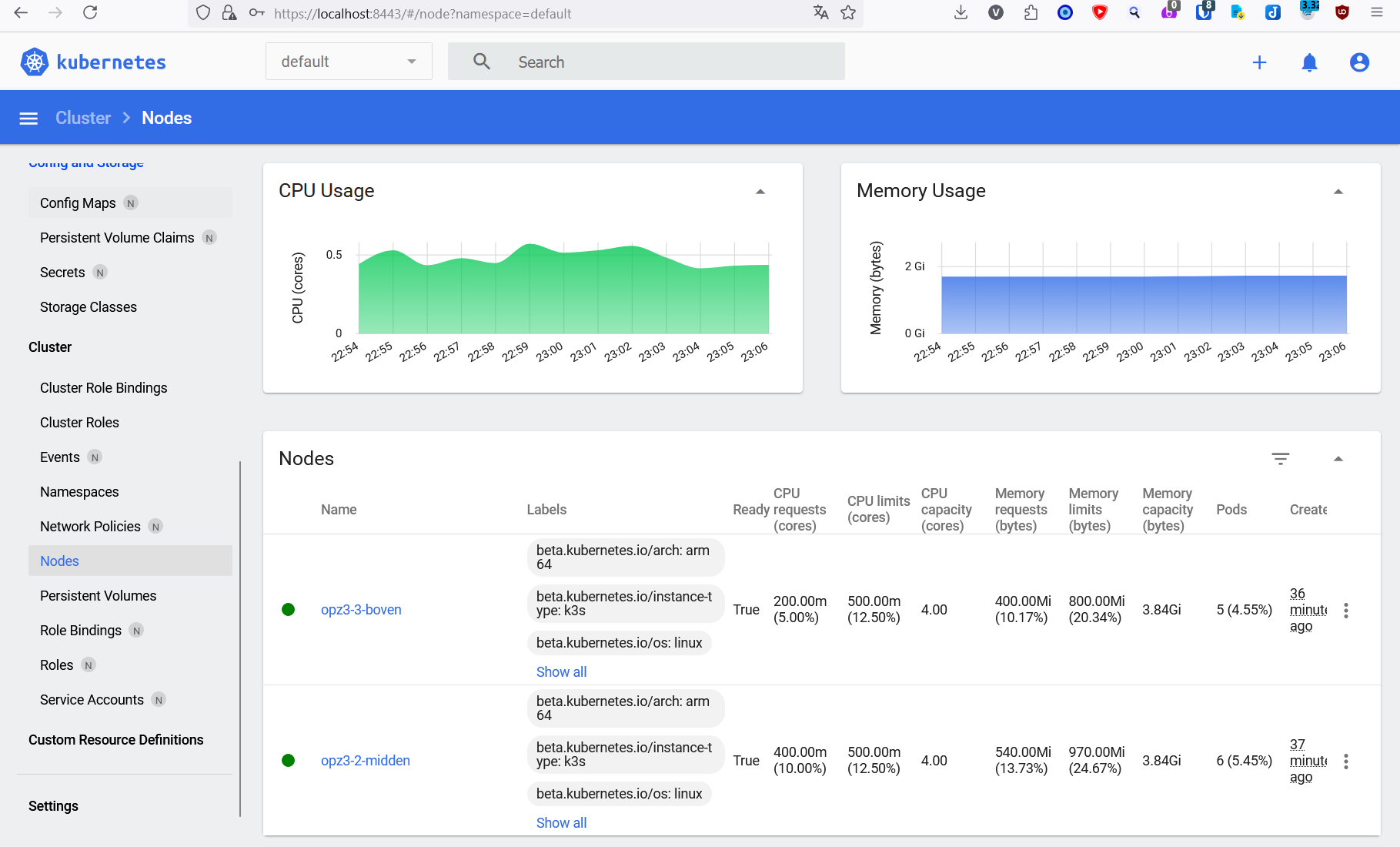
Here is the end result, 3 nodes in the Kubernetes Dashboard:
In the end I even managed to deploy Grafana & Prometheus (via Helm charts):
The Guestbook application was a big issue because the guide uses container images that are not built for ARM64 , but I managed to deploy that by manually using other images that were suitable for ARM64. It seemed to be working, I could post messages, but after every refresh of the page, all messages were gone. Turned out to be a redis-slave version difference, redis-master was running version 6.0.5 and slave was running 3.2.9, which was due to the different images for ARM64. After fixing that with an image that runs the correct redis version on ARM64 all worked. Lots of kubectl exec -ti redis-master-podname -- sh and debugging ( exec 3<> /dev/tcp/redis-master/6379; echo INFO >&3; cat <&3 due to the lack of telnet or netcat ) but that helps me learn this stuff. My yaml files for ARM64 are on github for reference.
Setup the first node (control plane)
Choose one of your cluster nodes to be the first which will not only be a worker node but also host the control plane. You can install just one node, because in the case of k3s that node will also become a worker node.
I run the Orange Pi Boards without a Micro SD Card, they boot up via PXE with an NFS root file system, so I cannot use overlayfs2 . Therefore during installation I provide an extra parameter to use the native shapshotter. Also some etcd timeouts are raised.
Install k3s using their installer:
curl -sfL https://get.k3s.io | sh -s - --snapshotter=native --etcd-arg election-timeout=5000 --etcd-arg heartbeat-interval=1000
Output:
[INFO] Finding release for channel stable [INFO] Using v1.29.5+k3s1 as release [INFO] Downloading hash https://github.com/k3s-io/k3s/releases/download/v1.29.5+k3s1/sha256sum-arm64.txt [INFO] Downloading binary https://github.com/k3s-io/k3s/releases/download/v1.29.5+k3s1/k3s-arm64 [INFO] Verifying binary download [INFO] Installing k3s to /usr/local/bin/k3s [INFO] Skipping installation of SELinux RPM [INFO] Creating /usr/local/bin/kubectl symlink to k3s [INFO] Creating /usr/local/bin/crictl symlink to k3s [INFO] Creating /usr/local/bin/ctr symlink to k3s [INFO] Creating killall script /usr/local/bin/k3s-killall.sh [INFO] Creating uninstall script /usr/local/bin/k3s-uninstall.sh [INFO] env: Creating environment file /etc/systemd/system/k3s.service.env [INFO] systemd: Creating service file /etc/systemd/system/k3s.service [INFO] systemd: Enabling k3s unit Created symlink /etc/systemd/system/multi-user.target.wants/k3s.service - /etc/systemd/system/k3s.service. [INFO] Host iptables-save/iptables-restore tools not found [INFO] Host ip6tables-save/ip6tables-restore tools not found [INFO] systemd: Starting k3s
(Remove the --snapshotter=native part if you are not running a root filesystem on NFS).
Get the token for cluster installation (adding the other nodes to the cluster):
cat /var/lib/rancher/k3s/server/node-token
Output:
K10a[...]418::server:7a8[...]8e441
Save that output somewhere.
Alsop save the configuration file for the admin workstation setup later on:
cat /etc/rancher/k3s/k3s.yaml
Output:
apiVersion: v1 clusters: - cluster: certificate-authority-data: LS0[...]0K server: https://127.0.0.1:6443 name: default contexts: - context: cluster: default user: default name: default current-context: default kind: Config preferences: {} users: - name: default user: client-certificate-data: LS0[...]LS0K client-key-data: LS0t[...]LQo=
If you want to set up just one node you can continue on to the admin workstation setup. Otherwise, repeat the next section for every other board you want to add to the cluster.
You can test if the install worked with the following command:
kubectl get nodes
Output should be a list of cluster nodes, currently just one:
NAME STATUS ROLES AGE VERSION opz3-2-midden Ready control-plane,master 2d22h v1.29.5+k3s1
Setup the worker nodes
These steps are a bit different and must be done on the worker nodes.
Install k3s with the install script but provide the server address ( K3S_URL ) and token you saved earlier:
curl -sfL https://get.k3s.io | K3S_URL="https://192.0.2.60:6443" K3S_TOKEN="K10a[...]c6418::server:7a [...]41" sh -s - --snapshotter=native
(Omit --snapshotter=native if you are not running an NFS root filesystem).
Output:
[INFO] Finding release for channel stable [INFO] Using v1.29.5+k3s1 as release [INFO] Downloading hash https://github.com/k3s-io/k3s/releases/download/v1.29.5+k3s1/sha256sum-arm64.txt [INFO] Skipping binary downloaded, installed k3s matches hash [INFO] Skipping installation of SELinux RPM [INFO] Skipping /usr/local/bin/kubectl symlink to k3s, already exists [INFO] Skipping /usr/local/bin/crictl symlink to k3s, already exists [INFO] Skipping /usr/local/bin/ctr symlink to k3s, already exists [INFO] Creating killall script /usr/local/bin/k3s-killall.sh [INFO] Creating uninstall script /usr/local/bin/k3s-agent-uninstall.sh [INFO] env: Creating environment file /etc/systemd/system/k3s-agent.service.env [INFO] systemd: Creating service file /etc/systemd/system/k3s-agent.service [INFO] systemd: Enabling k3s-agent unit Created symlink /etc/systemd/system/multi-user.target.wants/k3s-agent.service - /etc/systemd/system/k3s-agent.service. [INFO] Host iptables-save/iptables-restore tools not found [INFO] Host ip6tables-save/ip6tables-restore tools not found [INFO] systemd: Starting k3s-agent
Repeat the above shell command for all other nodes for this cluster.
You can test if the install worked with the following command on the master node:
kubectl get nodes
Output should be a list of cluster nodes:
NAME STATUS ROLES AGE VERSION opz3-2-midden Ready control-plane,master 2d22h v1.29.5+k3s1 opz3-3-boven Ready <none> 2d22h v1.29.5+k3s1 opz3-1-onder Ready <none> 2d2h v1.29.5+k3s1
Admin workstation (your desktop)
You should manage the cluster not on the nodes but on your workstation using kubectl , the command line tool for managing Kubernetes clusters. You also need it on your (linux) desktop to gain access to the kubernetes dashboard later on (it forwards a port to an internal service, localhost only).
Install kubectl by following the official guide. I used their provided debian APT repository.
Create a folder for the configuration:
mkdir -p ~/.kube
Paste contents of cat /etc/rancher/k3s/k3s.yaml we saved earlier from the control plane node into the following file:
vim ~/.kube/config
Replace server: https://127.0.0.1:6443 with the IP of your first server.
Change permissions of the file:
chmod 600 ~/.kube/config
Test using the same command we used after installing each node:
kubectl get nodes
Output:
NAME STATUS ROLES AGE VERSION opz3-2-midden Ready control-plane,master 2d22h v1.29.5+k3s1 opz3-3-boven Ready <none> 2d22h v1.29.5+k3s1 opz3-1-onder Ready <none> 2d2h v1.29.5+k3s1
Install Dashboard UI (via Helm)
Execute these steps on the admin workstation. Start by installing helm . Helm is what we use to install the dashboard. Use the below command or your package manager:
curl -fsSL https://raw.githubusercontent.com/helm/helm/main/scripts/get-helm-3 | bash
Add the kubernetes-dashboard helm repository:
helm repo add kubernetes-dashboard https://kubernetes.github.io/dashboard/
Output:
"kubernetes-dashboard" has been added to your repositories
Install the Dashboard UI:
helm upgrade --install kubernetes-dashboard kubernetes-dashboard/kubernetes-dashboard --create-namespace --namespace kubernetes-dashboard
Output:
Release "kubernetes-dashboard" does not exist. Installing it now. NAME: kubernetes-dashboard LAST DEPLOYED: Sat Jun 22 22:44:26 2024 NAMESPACE: kubernetes-dashboard STATUS: deployed REVISION: 1 TEST SUITE: None NOTES: ************************************************************************************************* *** PLEASE BE PATIENT: Kubernetes Dashboard may need a few minutes to get up and become ready *** ************************************************************************************************* Congratulations! You have just installed Kubernetes Dashboard in your cluster. To access Dashboard run: kubectl -n kubernetes-dashboard port-forward svc/kubernetes-dashboard-kong-proxy 8443:443 NOTE: In case port-forward command does not work, make sure that kong service name is correct. Check the services in Kubernetes Dashboard namespace using: kubectl -n kubernetes-dashboard get svc Dashboard will be available at: https://localhost:8443
Access Dashboard.
To access the dashboard you first need to create a user that can generate a token. Each time you want to access the token you must first get a token using a command and then forward the ports. Follow the Login Credentials section below first to create the correct user. Afterwards, to get access to the dashboard, execute these commands:
kubectl -n kubernetes-dashboard create token admin-user kubectl -n kubernetes-dashboard port-forward svc/kubernetes-dashboard-kong-proxy 8443:443
Kubectl will make Dashboard available at https://localhost:8443/#/login
Login credentials for the dashboard
On your workstation, create a folder for our YAML files:
mkdir k8s cd k8s
Create a file for the admin user:
vim dashboard.admin-user.yml
Contents:
apiVersion: v1 kind: ServiceAccount metadata: name: admin-user namespace: kubernetes-dashboard
Create a file for the admin user role:
vim dashboard.admin-user-role.yml
Contents:
apiVersion: rbac.authorization.k8s.io/v1 kind: ClusterRoleBinding metadata: name: admin-user roleRef: apiGroup: rbac.authorization.k8s.io kind: ClusterRole name: cluster-admin subjects: - kind: ServiceAccount name: admin-user namespace: kubernetes-dashboard
Execute the following command to apply both files:
kubectl create -f dashboard.admin-user.yml -f dashboard.admin-user-role.yml
Output:
serviceaccount/admin-user created clusterrolebinding.rbac.authorization.k8s.io/admin-user created
Try to get a token to login to the dashboard:
kubectl -n kubernetes-dashboard create token admin-user
Output:
eyJh[...]HWRw
Login and go to the Nodes page to see your cluster in all it's glory:
Test Deployment
Create a folder for your deployment yaml files:
mkdir k8s-test cd k8s-test
Most guides just have you executing a shell command, but that's not very reproducable nor declarative. This is an example command:
kubectl create deployment hello-node --image=registry.k8s.io/e2e-test-images/agnhost:2.39 -- /agnhost netexec --http-port=8080
Output:
deployment.apps/hello-node created
Lets skip this imperative part and jump right into the good stuff (declarative, files you can put in source control).
Create a yaml file for our test pod:
vim hello-node-pod.yaml
Contents:
apiVersion: v1 kind: Pod metadata: name: hello-kube-pod labels: component: web spec: containers: - name: hello-kube image: registry.k8s.io/e2e-test-images/agnhost:2.39 ports: - containerPort: 8080 command: ["/agnhost"] args: ["netexec", "--http-port=8080"]
Feed this configuration to your cluster with the following command:
kubectl apply -f hello-node-pod.yaml
Output:
pod/hello-kube-pod created
Check the status of the pods:
kubectl get pods
Output:
NAME READY STATUS RESTARTS AGE hello-kube-pod 1/1 Running 0 11s
Logging from indside the Pod:
kubectl logs hello-kube-pod
Output:
I0624 04:27:56.441749 1 log.go:195] Started HTTP server on port 8080 I0624 04:27:56.442405 1 log.go:195] Started UDP server on port 8081
The pod is only reachable from the internal network of the kubernetes cluster. You need to expose the pod as a Kubernetes Service of the type LoadBalancer . If you are running Kubernetes on a public provider like Google Compute Engine, you'd want to use a NodePort because you probably pay more for LoadBalancer than for a NodePort .
If we were doing the imperative style guide you would use the following command:
kubectl expose deployment hello-node --type=LoadBalancer --port=8080
But we're not doing that. Create a Yaml file for the loadbalancer:
vim hello-node-loadbalancer.yaml
Contents:
apiVersion: v1 kind: Service metadata: name: hello-kube-load-balancer-service spec: type: LoadBalancer ports: - port: 8081 targetPort: 8080 selector: component: web
The hello-node pod only listens on port 8080 as we configured during the deployment. We expose it as port 8081 on the cluster.
Output:
service/hello-kube-load-balancer-service created
Check the status of the new Service:
kubectl get services
Output:
NAME TYPE CLUSTER-IP EXTERNAL-IP PORT(S) AGE kubernetes ClusterIP 10.43.0.1 <none> 443/TCP 31h hello-kube-load-balancer-service LoadBalancer 10.43.21.156 192.0.2.60,192.0.2.61,192.0.2.62 8081:32745/TCP 8s
In my case the output shows that the hello-node LoadBalancer runs on all three of the Orange Pi k3s nodes on port 8081 .
If you visit the IP+Port in your browser by default agnhost will echo back the request timestamp:
NOW: 2024-06-23 17:49:08.920400061 +0000 UTC m=+516.182935643
Adding the path /hostname will echo the servers hostname:
hello-node-ccf4b9788-gzs26
Do note that you can run shell commands in this container so make sure you do not expose it to the internet:
http://IP:PORT/shell?cmd=uname%20-a
Output:
{"output":"Linux hello-node-ccf4b9788-gzs26 6.6.31-current-sunxi64 #1 SMP Fri May 17 10:02:40 UTC 2024 aarch64 Linux
"}
Testing failover
In the Kubernetes Dashboard under Pods you can see which node is running the pod:
You can also use the following command to get that information:
kubectl get pods -o wide --all-namespaces --sort-by="{.spec.nodeName}"
Output:
NAMESPACE NAME READY STATUS RESTARTS AGE IP NODE NOMINATED NODE READINESS GATES kube-system svclb-frontend-d7256f7a-h27bw 1/1 Running 0 56m 10.42.2.134 opz3-1-onder <none> <none> kube-system svclb-prometheus-server-ext-ac974dfa-qzdnp 1/1 Running 10 (12h ago) 3d23h 10.42.2.102 opz3-1-onder <none> <none> guestbook frontend-58d8fd4874-x8qsg 1/1 Running 0 15m 10.42.2.180 opz3-1-onder <none> <none> guestbook frontend-58d8fd4874-kpk69 1/1 Running 0 15m 10.42.2.179 opz3-1-onder <none> <none>
In my case its the node opz3-1-onder . If I power that machine off, the node will first go in the NotReady state:
kubectl get nodes
Output:
NAME STATUS ROLES AGE VERSION opz3-1-onder NotReady <none> 74m v1.29.5+k3s1 opz3-3-boven Ready <none> 21h v1.29.5+k3s1 opz3-2-midden Ready control-plane,master 21h v1.29.5+k3s1
After 5 minutes the pod will be created on another node, as seen in the events log:
kubectl events
Output
LAST SEEN TYPE REASON OBJECT MESSAGE 23m Normal ScalingReplicaSet Deployment/hello-node Scaled up replica set hello-node-ccf4b9788 to 1 23m Normal SuccessfulCreate ReplicaSet/hello-node-ccf4b9788 Created pod: hello-node-ccf4b9788-gzs26 23m Normal Scheduled Pod/hello-node-ccf4b9788-gzs26 Successfully assigned default/hello-node-ccf4b9788-gzs26 to opz3-1-onder 23m Normal Pulling Pod/hello-node-ccf4b9788-gzs26 Pulling image "registry.k8s.io/e2e-test-images/agnhost:2.39" 23m Normal Pulled Pod/hello-node-ccf4b9788-gzs26 Successfully pulled image "registry.k8s.io/e2e-test-images/agnhost:2.39" in 13.116s (13.116s including waiting) 23m Normal Created Pod/hello-node-ccf4b9788-gzs26 Created container agnhost 23m Normal Started Pod/hello-node-ccf4b9788-gzs26 Started container agnhost 18m Normal EnsuringLoadBalancer Service/hello-node Ensuring load balancer 18m Normal AppliedDaemonSet Service/hello-node Applied LoadBalancer DaemonSet kube-system/svclb-hello-node-b0ca2b59 18m Normal UpdatedLoadBalancer Service/hello-node Updated LoadBalancer with new IPs: [] -> [192.0.2.60] 18m Normal UpdatedLoadBalancer Service/hello-node Updated LoadBalancer with new IPs: [192.0.2.60] -> [192.0.2.60 192.0.2.62] 18m Normal UpdatedLoadBalancer Service/hello-node Updated LoadBalancer with new IPs: [192.0.2.60 192.0.2.62] -> [192.0.2.60 192.0.2.61 192.0.2.62] 7m41s (x2 over 73m) Normal NodeNotReady Node/opz3-1-onder Node opz3-1-onder status is now: NodeNotReady 7m41s Warning NodeNotReady Pod/hello-node-ccf4b9788-gzs26 Node is not ready 7m41s Normal UpdatedLoadBalancer Service/hello-node Updated LoadBalancer with new IPs: [192.0.2.60 192.0.2.61 192.0.2.62] -> [192.0.2.61 192.0.2.62] 2m36s Normal TaintManagerEviction Pod/hello-node-ccf4b9788-gzs26 Marking for deletion Pod default/hello-node-ccf4b9788-gzs26 2m36s Normal SuccessfulCreate ReplicaSet/hello-node-ccf4b9788 Created pod: hello-node-ccf4b9788-5rwdv 2m35s Normal Scheduled Pod/hello-node-ccf4b9788-5rwdv Successfully assigned default/hello-node-ccf4b9788-5rwdv to opz3-2-midden 2m35s Normal Pulling Pod/hello-node-ccf4b9788-5rwdv Pulling image "registry.k8s.io/e2e-test-images/agnhost:2.39" 2m23s Normal Pulled Pod/hello-node-ccf4b9788-5rwdv Successfully pulled image "registry.k8s.io/e2e-test-images/agnhost:2.39" in 11.63s (11.63s including waiting) 2m23s Normal Created Pod/hello-node-ccf4b9788-5rwdv Created container agnhost 2m23s Normal Started Pod/hello-node-ccf4b9788-5rwdv Started container agnhost
The old pod is being terminated:
kubectl get pods
Output:
NAME READY STATUS RESTARTS AGE hello-node-ccf4b9788-gzs26 1/1 Terminating 0 84m hello-node-ccf4b9788-5rwdv 1/1 Running 0 63m
This will succeed once the node comes back online again.
Time for a bit of theory on how this all works. (via)
The Kubernetes controller plane is responsible for watching the state of nodes in the cluster. There are a few configurable options at play in determining the health of nodes:
node-monitor-period (Default: 5s): The period for syncing NodeStatus in NodeController .
(Default: 5s): The period for syncing in . node-monitor-grace-period (Default: 40s): Amount of time which we allow running Node to be unresponsive before marking it unhealthy
(Default: 40s): Amount of time which we allow running to be unresponsive before marking it unhealthy pod-eviction-timeout (Default: 5m0s): The grace period for deleting pods on failed nodes.
These options mean that every 5 seconds the node must respond to a heart beat from the master node. If the node ever fails to respond, it has 40 seconds to successfully respond. After 40 seconds, the node is marked as Unknown . If the node remains Unknown (or NotReady ) for 5 minutes, then all pods on that node will be deleted.
After 5 minutes Kubernetes has successfully quarantined the node and triggered a delete of all pods on the node. Those pods will then get rescheduled for deployment on a working node.
This is different for Stateful Sets but I'll save those for another day.
Tags: armbian